Demand arrives without a plan.
Priority, asset details and available hours live in separate conversations.
FOR SERVICE DIRECTORS & MAINTENANCE TEAMS
One service loop from the first request to a signed record.
Work orders, resource scheduling, field execution and asset history—together.
01 / WHY IT MATTERS
THE GAP BETWEEN DISPATCHED AND DONEService teams juggle urgent calls, full calendars, missing parts and reports that arrive after the visit. Each handover can lose the context the next person needs.
Make every handover part of
one visible service record.
Priority, asset details and available hours live in separate conversations.
The engineer needs the job, equipment history, manuals and a clear way to record the work.
Reports, signatures, parts used and actual effort need to return to the same service record.
WHERE THIS FITS
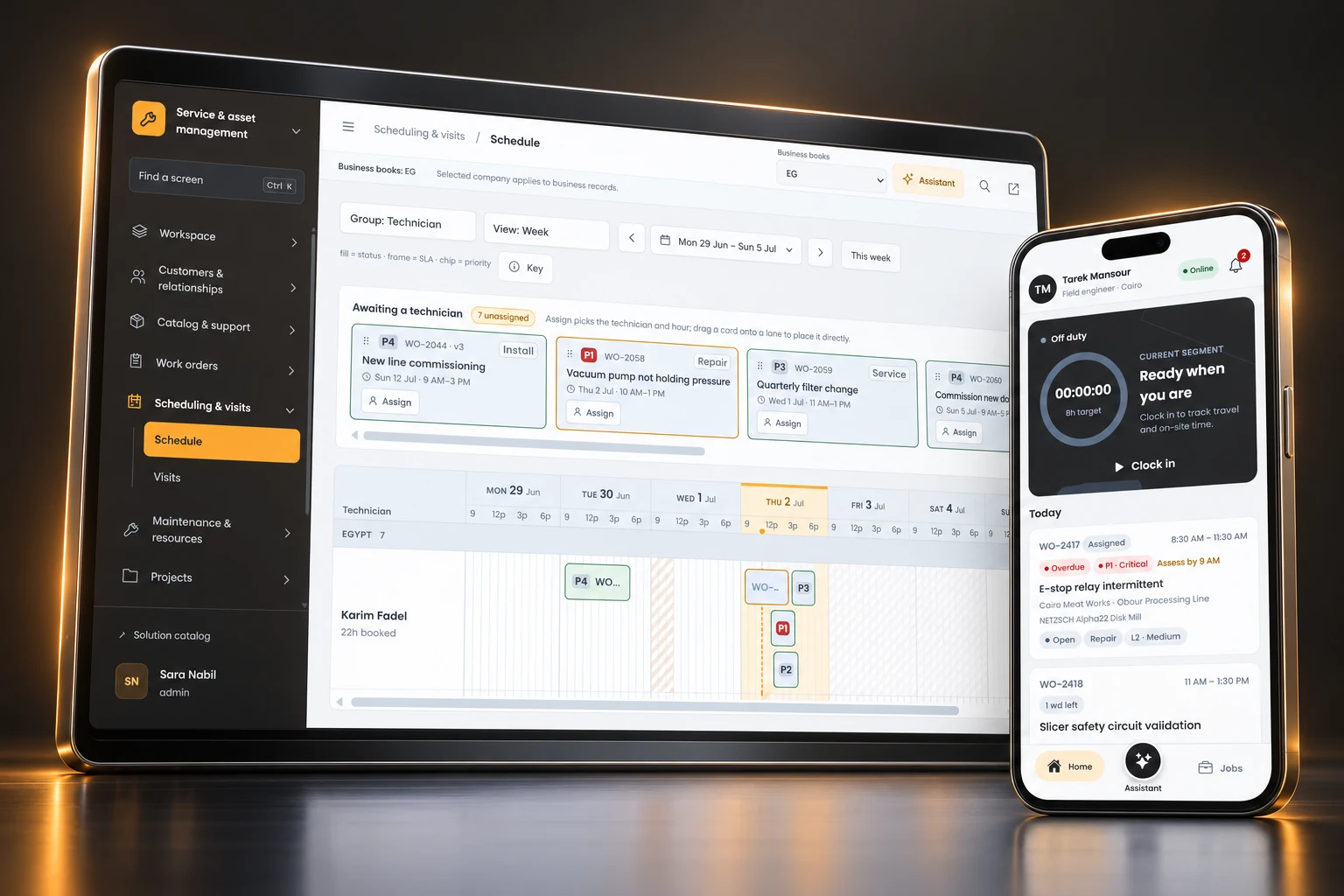
Coordinate the dispatcher, the visit and the engineer’s closeout.
Keep installed machinery, parts, manuals and service history connected.
Plan corrective and preventive work against available people and hours.
02 / THE CONNECTED LOOP
THE NEXT STEP HAS THE CONTEXTOne workspace for the office. A dedicated app for the engineer. A connected record of the asset and the work.
Customer, site, asset
and service priority
Technician, capacity
and planned hours
Visit, time, checklist
and field context
Parts, equipment
and service history
Report, evidence
and next actions
What happened on this visit informs the next service decision.
See an illustrative job →See technician capacity, skills and unavailable time beside the work.
Link parts requests and consumption to the relevant machine; keep blocking requests visible through closeout.
Keep assigned report definitions when templates change, so the field handover remains consistent.
Who is free? What happened last time? Has the report been signed?
See the resource plan, open the installed asset, and follow the job through closeout.
03 / THE PRODUCT TOUR
3 CHAPTERS · 9 CONCRETE CAPABILITIESCurrent office and technician workflows, illustrated with sample UI and data. Explore the planning workspace, field delivery and the evidence that completes the record.
CHAPTER 01 / SERVICE & ASSET MANAGEMENT
Make demand and available hours visible together.
Give every job a clear starting point, place it against resource capacity, and bring preventive work into the plan.
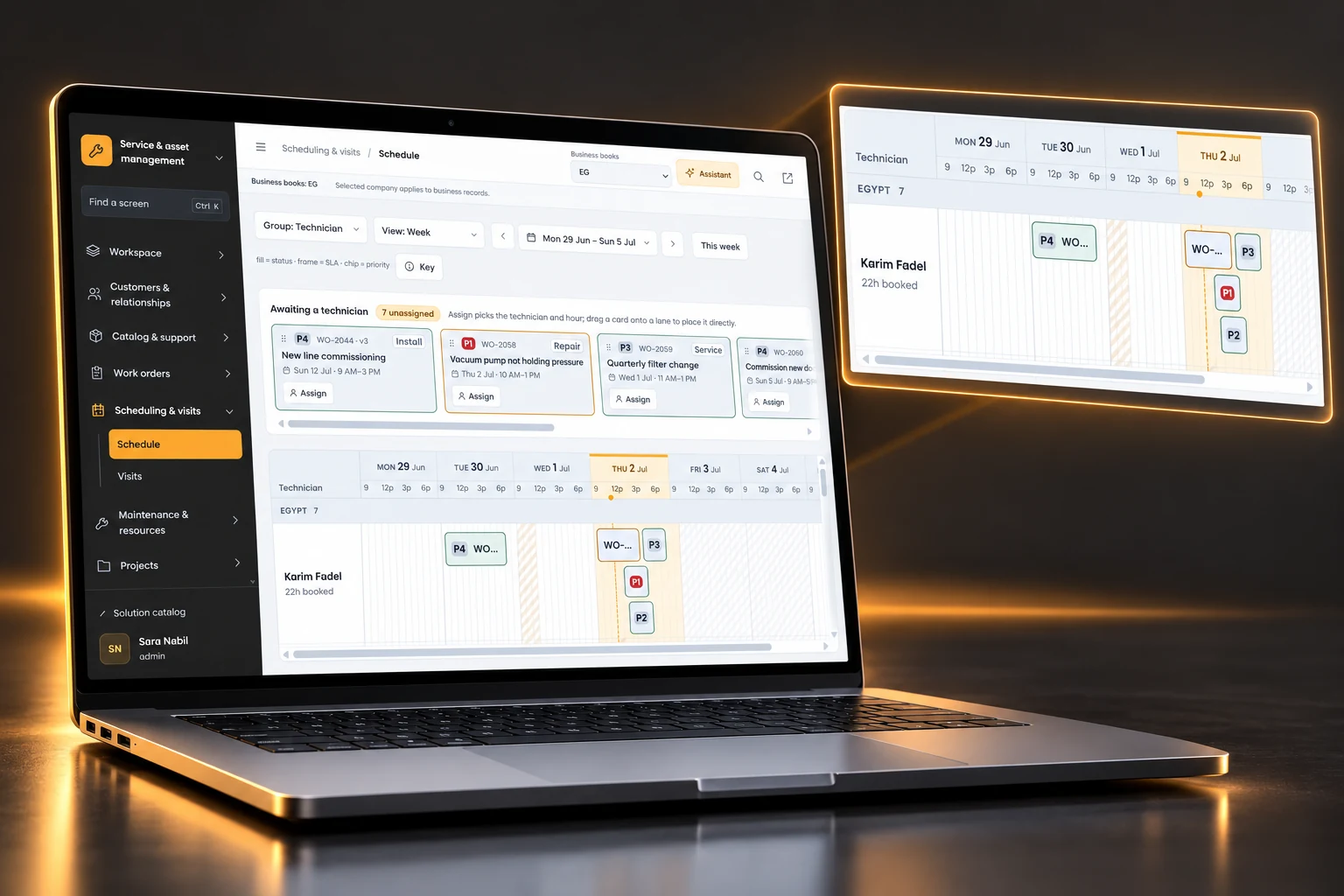
Work orders01 / 09
Give the office and the engineer the same starting point.
Create and triage service work with the customer, site, installed equipment, priority and service deadlines together. Keep a named owner responsible for the next action.
The next person sees the job’s context without rebuilding it from messages.
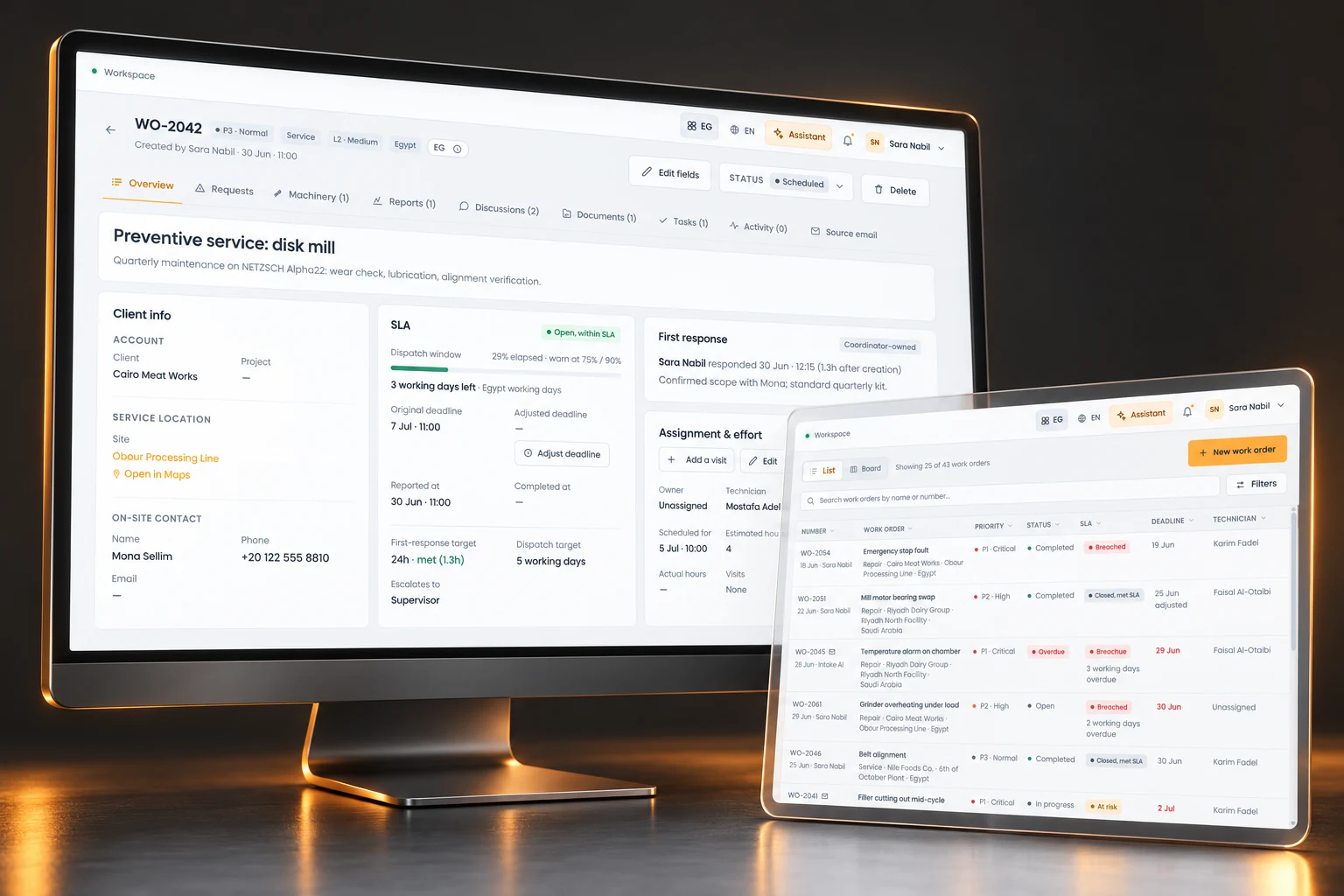
Resource & hour scheduling02 / 09
See demand and capacity on the same calendar.
Plan work by technician and hour. Move unassigned work into the schedule, inspect planned duration and compare booked work with availability before making the commitment.
A dispatcher can choose a feasible slot and explain why the work fits there.
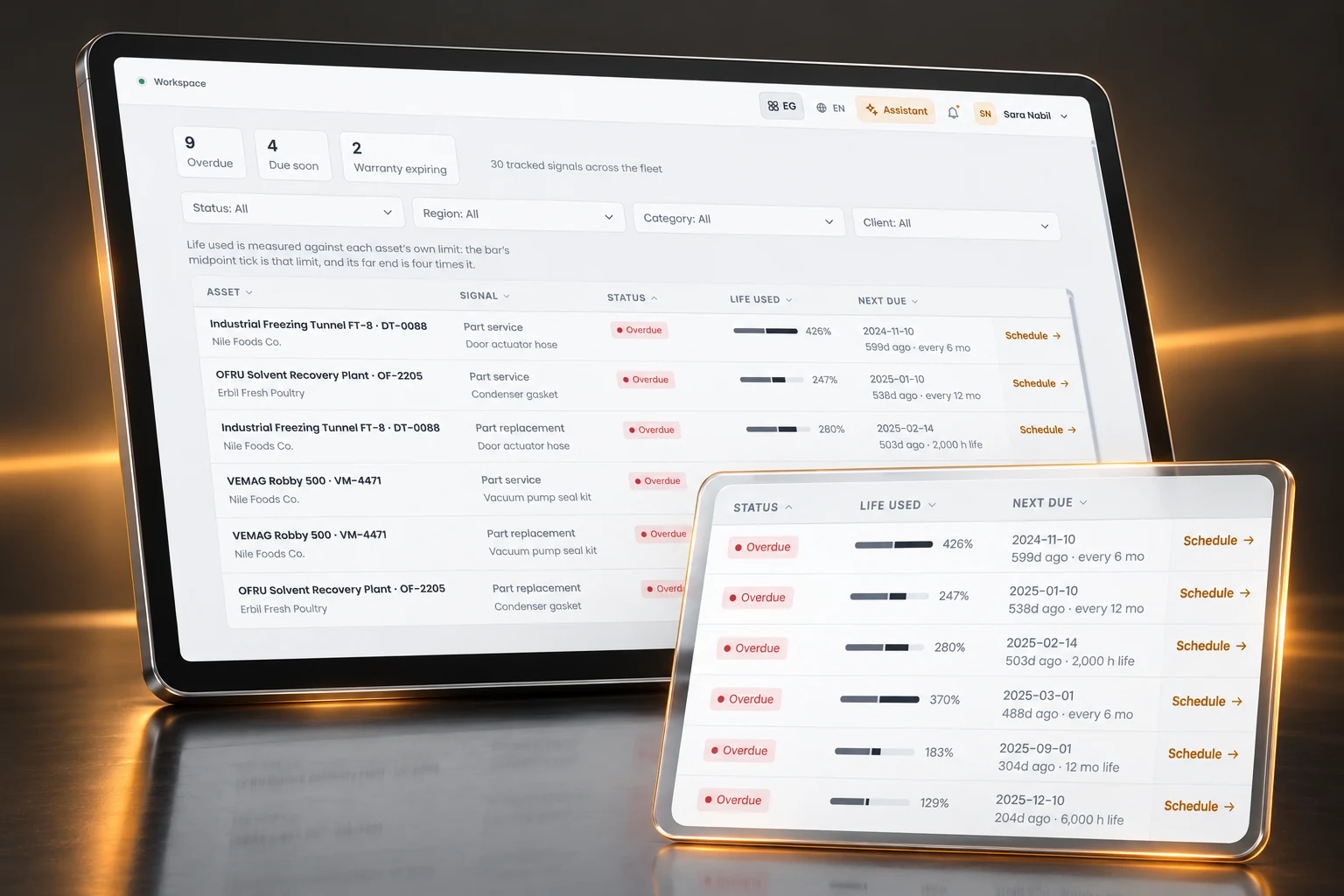
Preventive maintenance03 / 09
Turn due work into a plan the team can act on.
Review maintenance signals for installed equipment and tracked parts. Use upcoming, overdue and warranty signals to decide what needs attention and raise the associated service work.
Routine service can enter the same scheduling process as corrective work.
CHAPTER 02 / SERVICE & ASSET MANAGEMENT
Carry the job from the office to the installed asset.
Connect visits and projects with the engineer’s day, then keep equipment context and parts needs with the work.
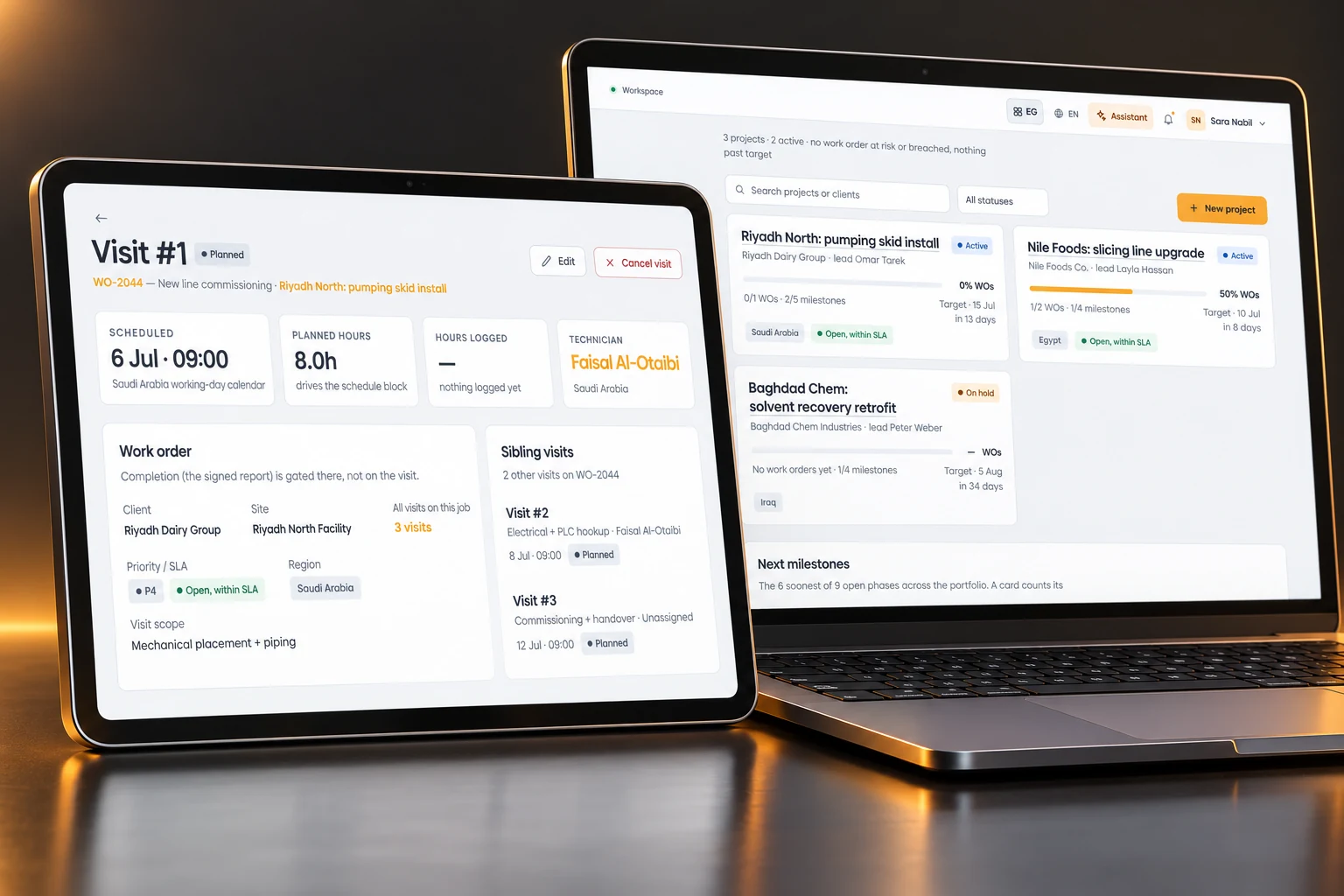
Visits & projects04 / 09
Coordinate the work that takes more than one appointment.
Track visits within a work order, then group related work into a service or installation project. Give the lead a view of milestones, dates, documents and progress across the wider commitment.
A return visit has a reason and a place in the plan, rather than becoming a separate loose end.
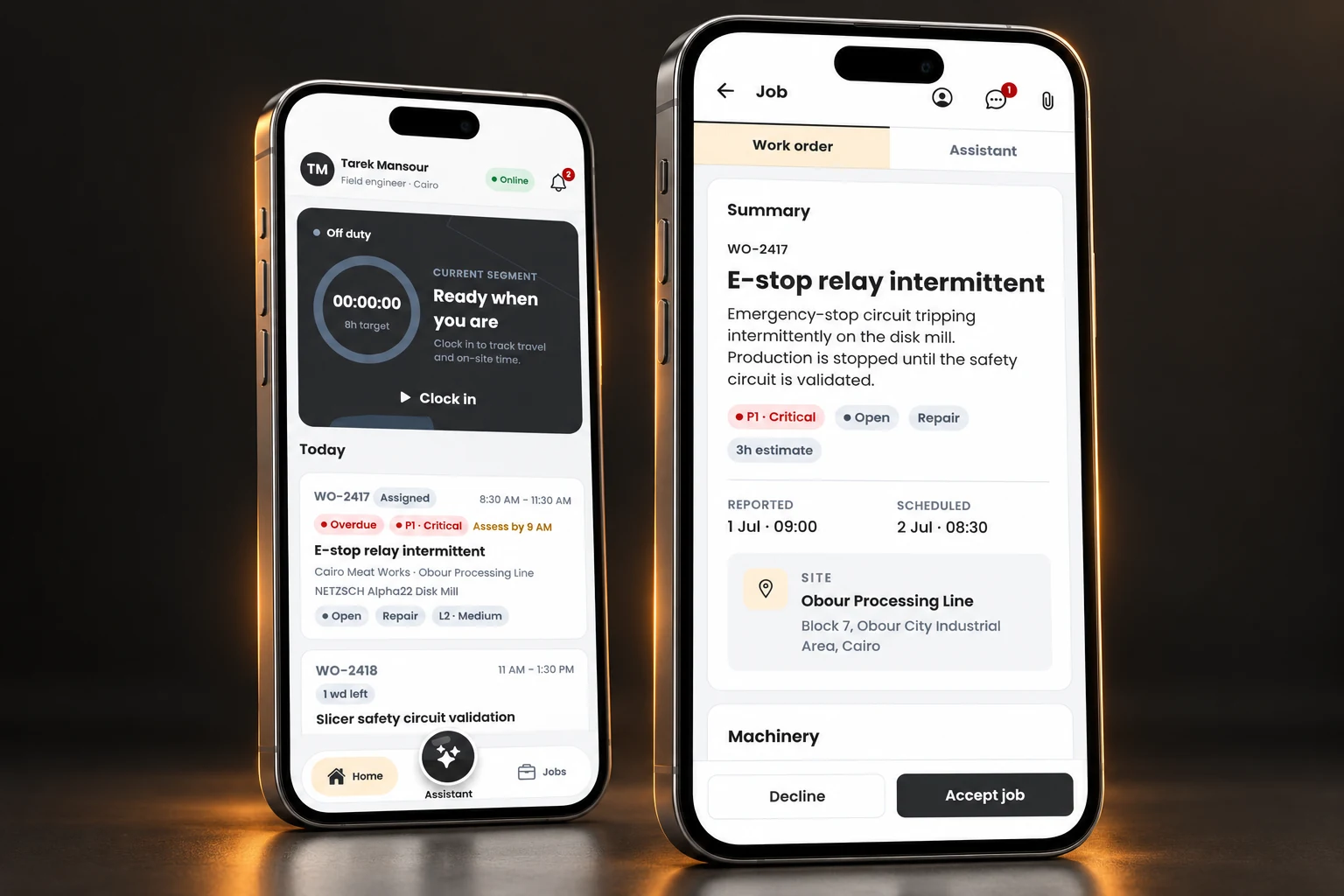
Technician app05 / 09
A dedicated field interface for doing the work.
Technicians can review assigned jobs, accept work, mark travel, start or pause work and follow the job checklist. The equipment, report and parts request stay reachable from the job.
Field updates belong to the job record, so the office has a clearer handover.
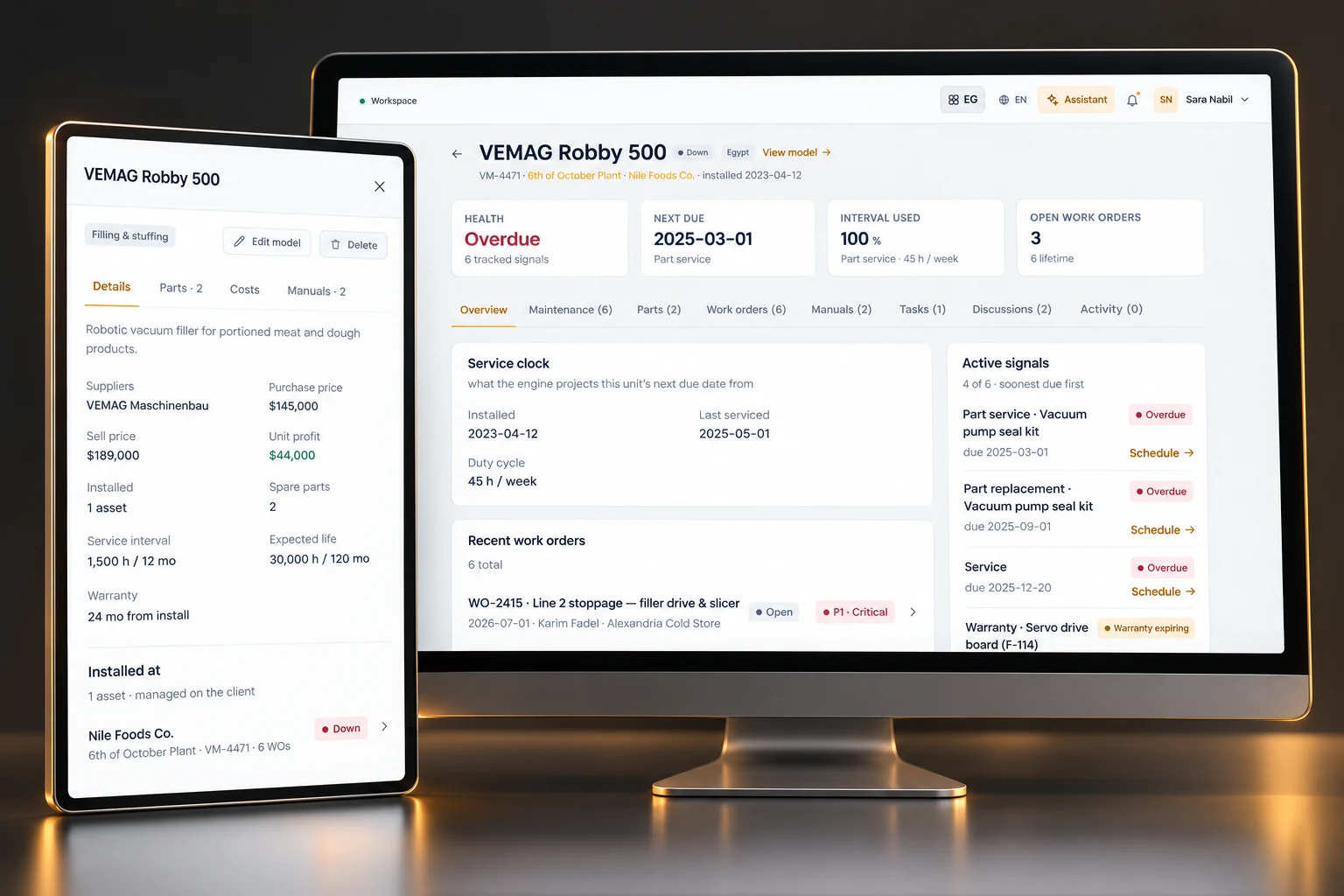
Assets, parts & history06 / 09
Keep the installed unit’s context with the service work.
Bring the customer site, installed machinery, tracked parts, manuals, maintenance signals and work-order history into view. Engineers can request parts against the relevant machine while the job remains connected.
The next visit starts with the equipment’s history instead of an empty page.
CHAPTER 03 / SERVICE & ASSET MANAGEMENT
Close with evidence. Learn from the work.
Bring reports, signatures and recorded effort back into the service record and the next management review.
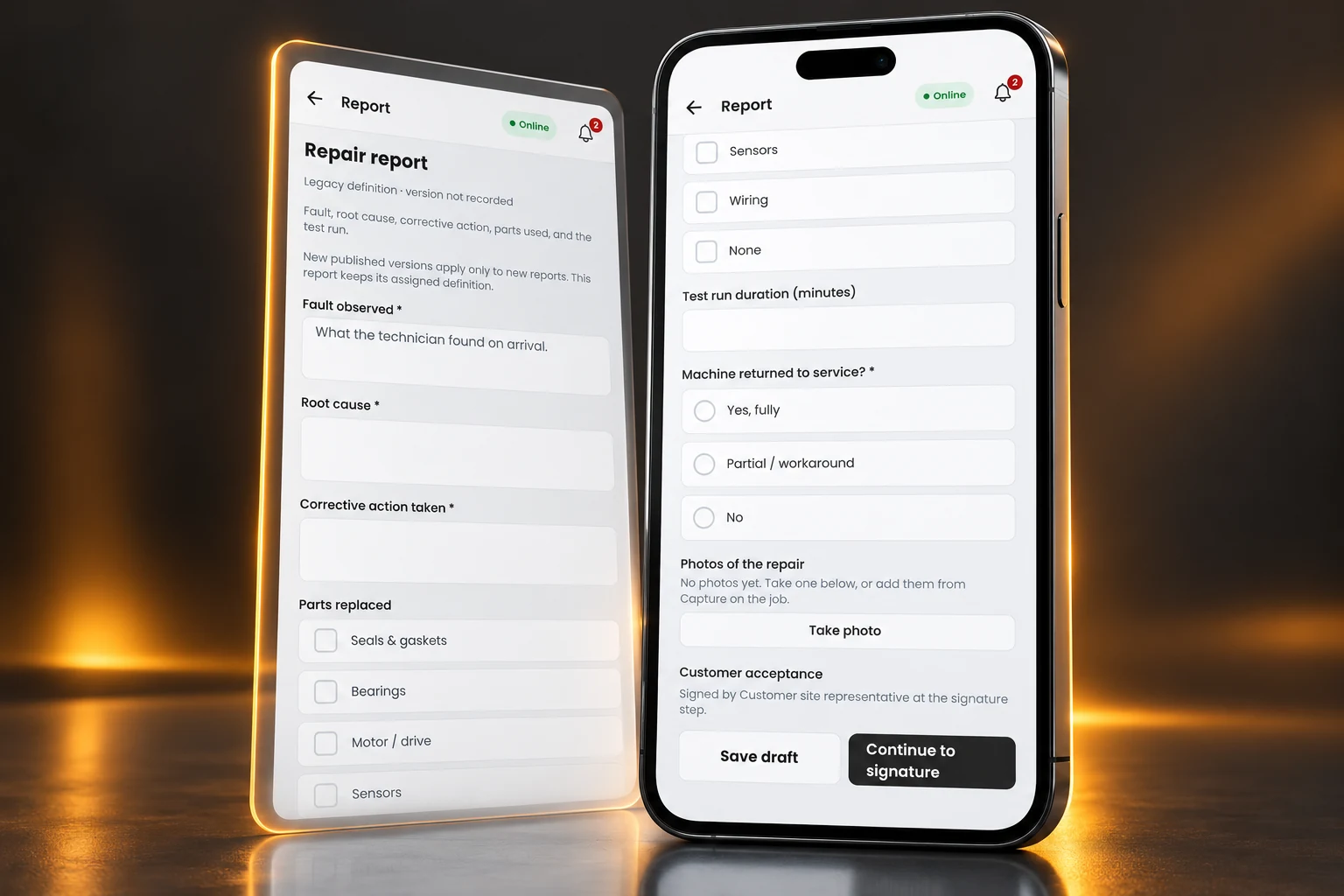
Reports & signatures07 / 09
A signed service report belongs beside the job.
Capture structured report answers, attachments, parts used and signatures in the field workflow. Required report information and unresolved blocking parts requests remain visible before the job can be completed.
The handover can answer what was done, on which asset, with what evidence.
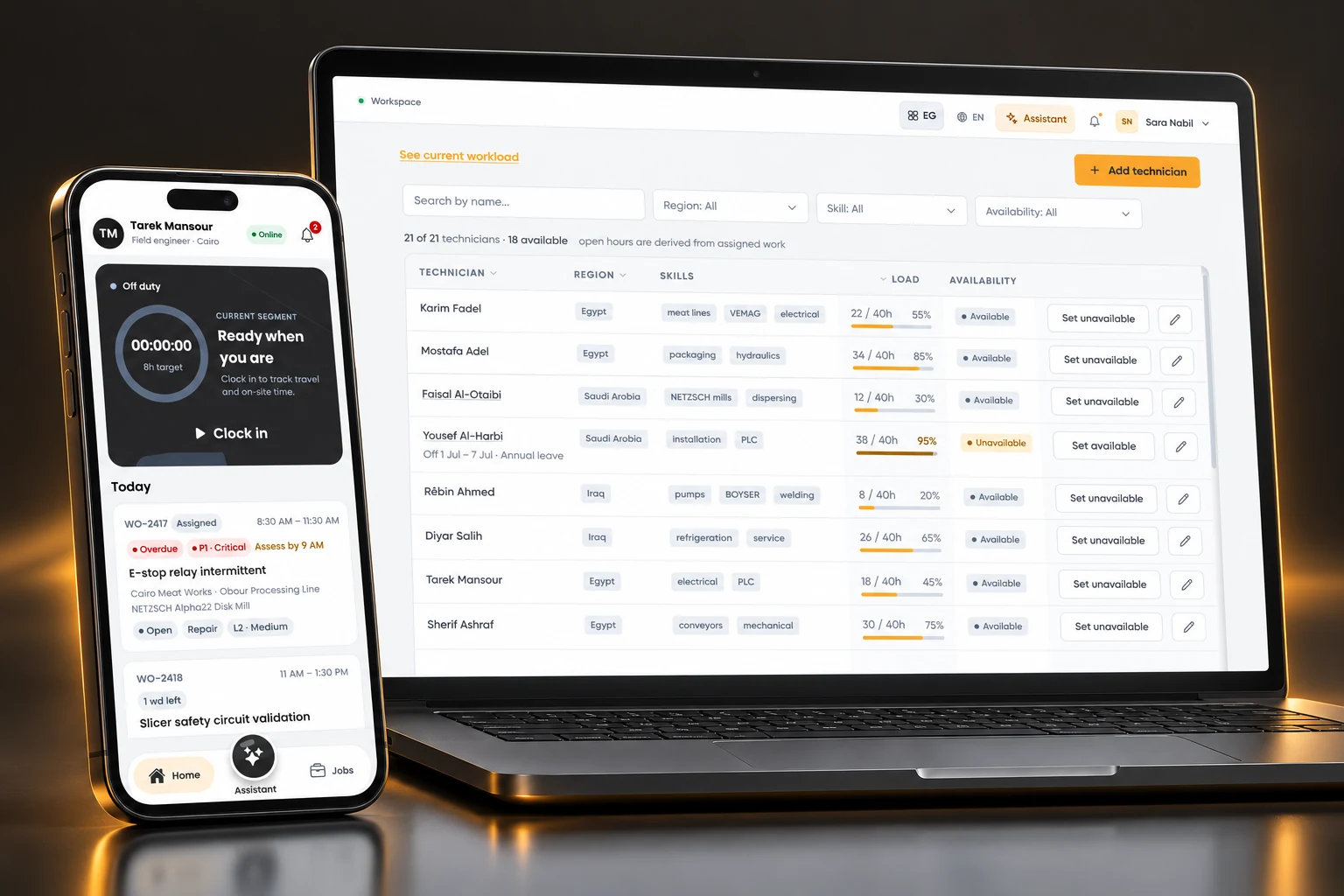
Time & resource availability08 / 09
Make recorded effort useful for the next schedule.
Use the field clock and timesheet history alongside technician capacity, booked hours, skills and availability. Managers can review how time was recorded and decide how to plan the next commitment.
Capacity discussions can start from visible work and recorded time.
Service reporting09 / 09
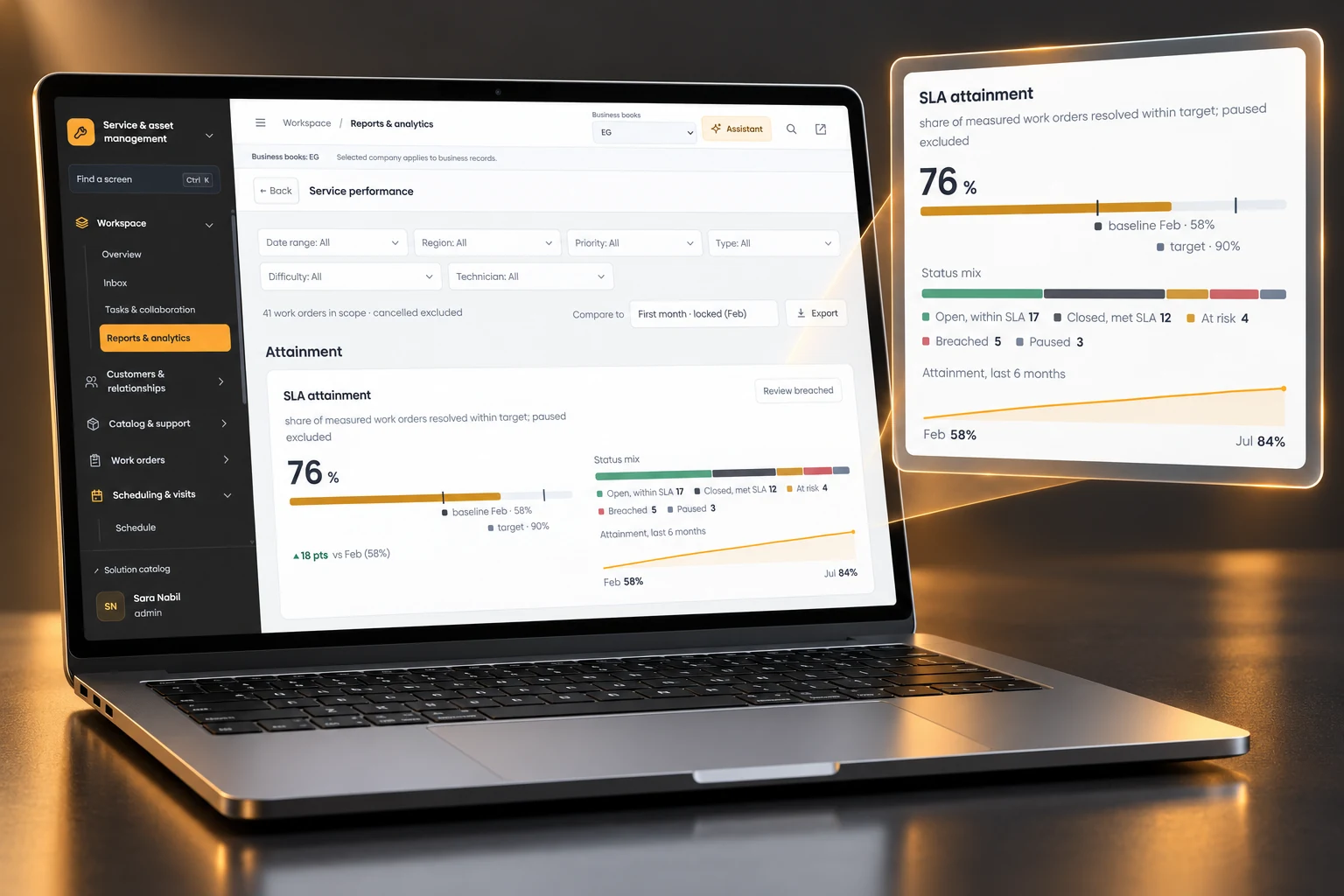
See the status and deadlines behind the management view.
Filter service performance by date, region, priority, type, difficulty or technician. Review SLA attainment, the work-order status mix and baseline or target context, then inspect the work that needs attention.
A service review can lead to a specific scheduling, maintenance or follow-up decision.
04 / FOLLOW ONE SERVICE JOB
ILLUSTRATIVE WORKFLOW · SAMPLE DATAWalk through a sample pump repair. These local steps illustrate the handovers; they do not create real work or send notifications.
01 / SERVICE INTAKE
A pump is losing pressure at a customer site. The coordinator links the installed unit, records the symptoms, assigns priority and gives the work a named owner.
WO-DEMO-1042 · REPAIR
Example Foods · Process line 2 · Pump A-014
Customer, site and asset stay linked to this work order.
Step 1 of 5: Raise.
05 / START WITH A FOCUSED PILOT
DEFINE THE OPERATING SCOPE TOGETHERChoose a service team, a set of installed assets and the report that closes their work. Use that scope to evaluate fit before expanding.
The brief is created locally. Nothing is submitted or sent.
Agree work types, priorities, response rules, scheduling habits and responsibilities.
Confirm customers, sites, assets, parts, report templates and the people who can use them.
Test assignment, availability, time, parts and signed closeout on the devices your engineers use.
Check the completeness of the record, user adoption, required connections and rollout responsibilities.
AGREE WHAT THE PILOT MUST DEMONSTRATE
Use these observable checks to review the selected workflow together.
WORKFLOWS SHOWN
Work orders · Resource/hour scheduling · Visits · Preventive maintenance · Projects · Technician app · Asset history · Parts · Reports & signatures · Time · Analytics
CONFIRM DURING DISCOVERY
Data migration, permissions, device and offline needs, customer communication, inventory boundaries, system connections, hosting, support and commercial terms.
06 / QUESTIONS BEFORE THE PILOT
FIT, SCOPE & PRACTICAL DETAILSThe scheduler provides technician lanes, week/day views, planned durations and an unassigned-work queue. Technician records include capacity, open hours, time off and hourly unavailability.
A dedicated technician interface includes assigned jobs, job actions, time capture, machinery context, parts requests and service reports. Device, connectivity and offline requirements should be tested in the pilot.
The asset view connects the installed unit to its customer site, tracked parts, manuals, maintenance signals and related work-order history. This gives the next visit a usable starting point.
Work orders contain visits with a technician, planned time and status. Projects group related work orders, milestones, dates, a lead and supporting documents.
The supported workflow keeps required report fields, signature status and blocking parts requests visible before completion. Agree the report templates and exception rules for your operation during setup.
Start by mapping where customer, asset and parts data live, which system owns each record, and which handovers need a connection. Required integrations, migration and support are scoped implementation choices.
THE NEXT CONVERSATION
Show the first request, the schedule, the engineer’s report and the asset record you need at the end. Build the pilot around that real workflow.
Use the brief to arrange a workflow review with the team presenting this solution.